
What is UGC Rights Management?

You don’t need permission to embed user-generated content on your website, apps, and digital displays.
However, if you’d like to modify the user-generated content and, for example, use it in Facebook advertising, you need to request rights.
Here are a few examples of why you might want to request UGC rights:
- Use the user-generated content in a post on your social media account.
- Download the customer’s photo or video and use it in social media advertising.
- Modify the image and use it in a print catalogue
- Request to get the original, high-quality image or video from your customer.
- Use the content in brand marketing even if the user deletes it or turns their profile private on a social media channel.
- Ask the user to confirm they are the rightful owner of the content.
How to request UGC rights on Flockler
There are two ways to request UGC rights:
1. Request rights via Instagram and X (formerly Twitter)
To request rights via social media, follow these steps:
-
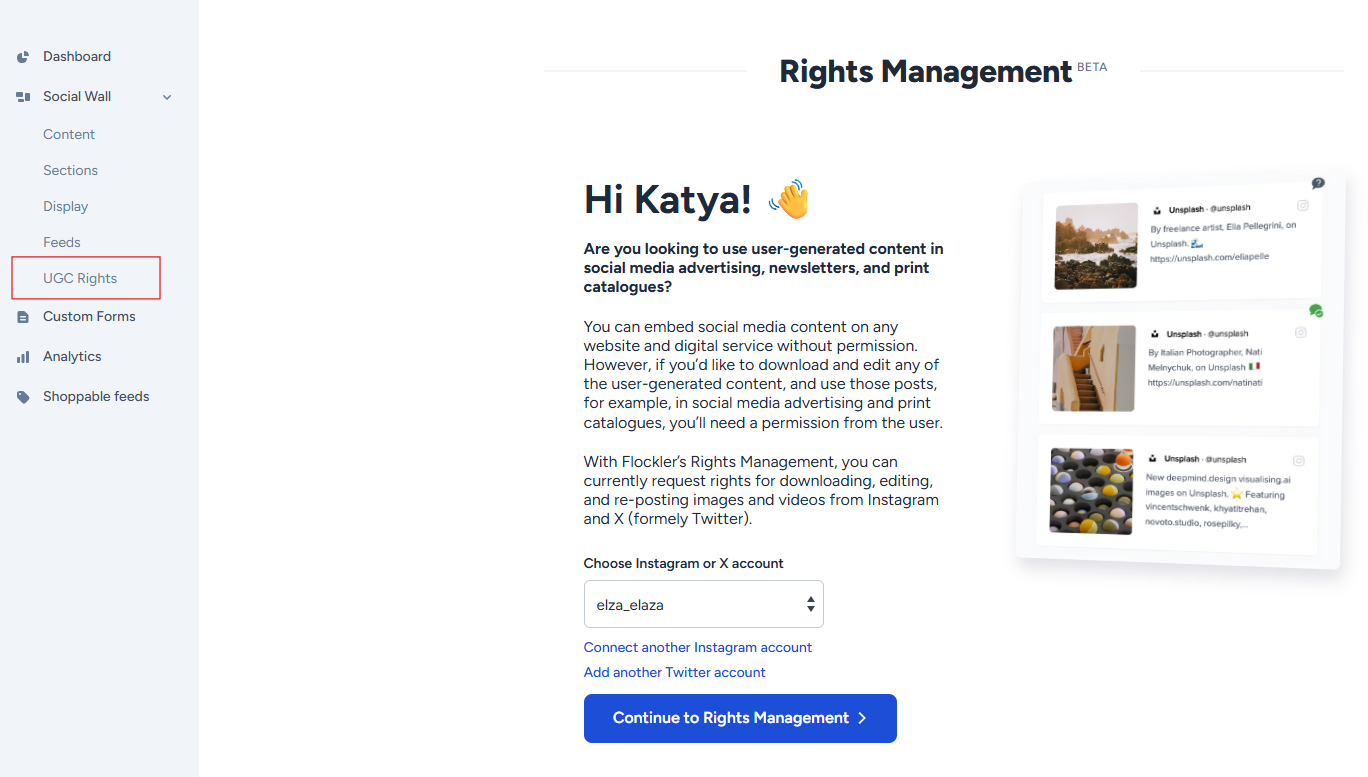
Go to the 'UGC Rights' tab, choose or connect your X and Instagram accounts, and click the 'Continue to Rights Management' button.
-
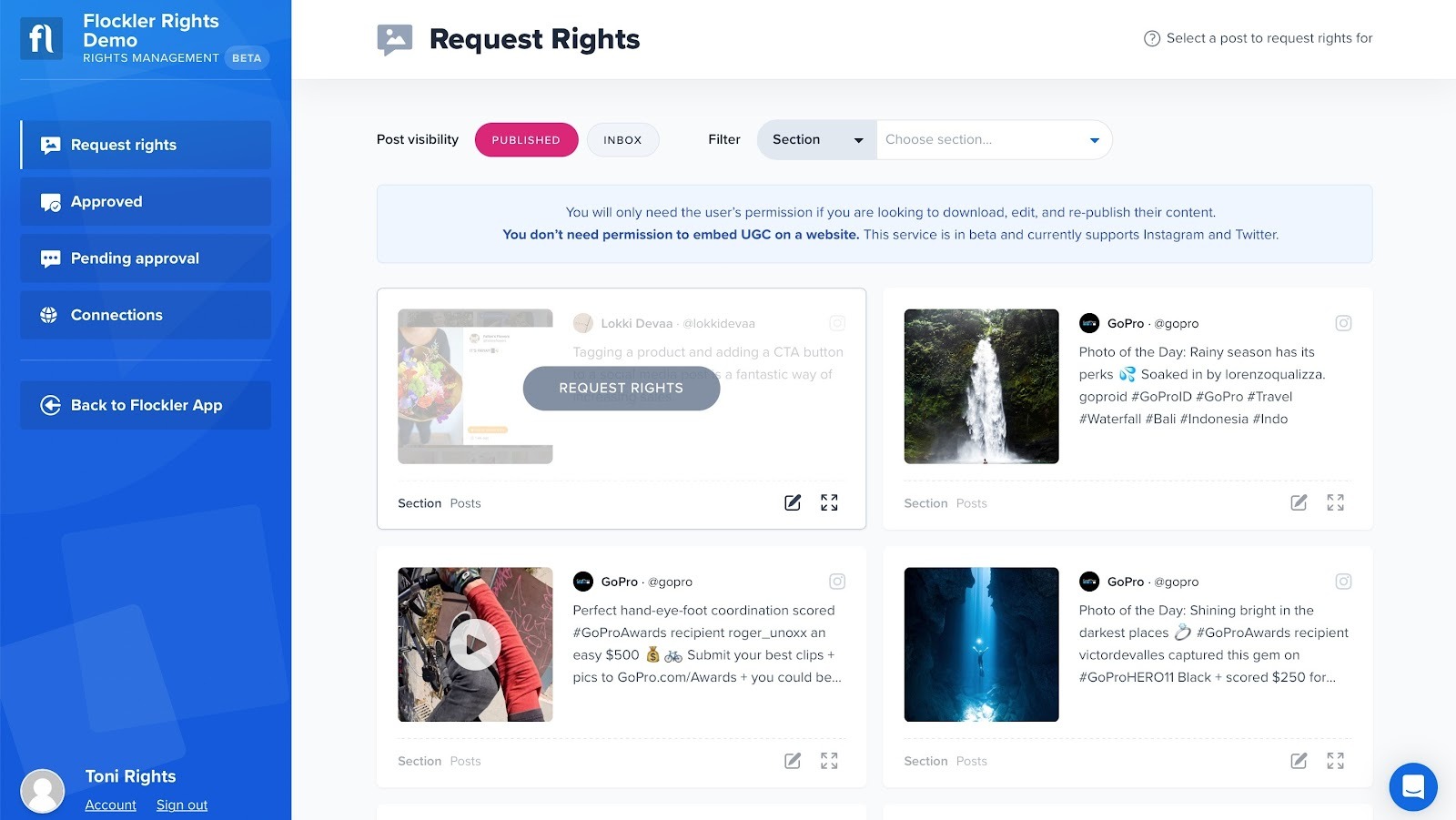
Choose one of the UGC posts you’ve saved in Flockler.
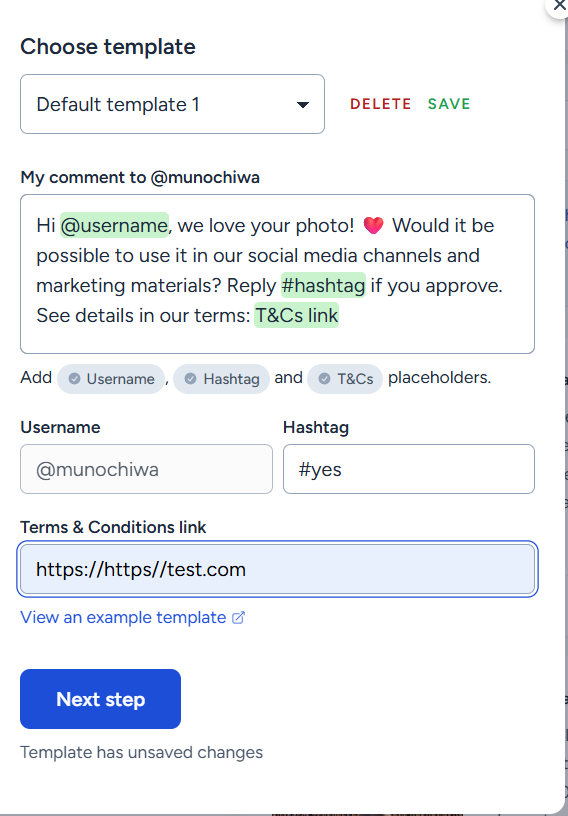
- Select one of the ready-made message templates or create a custom message, add a Terms and Conditions link, and click ‘Next step’
- Follow instruction

-
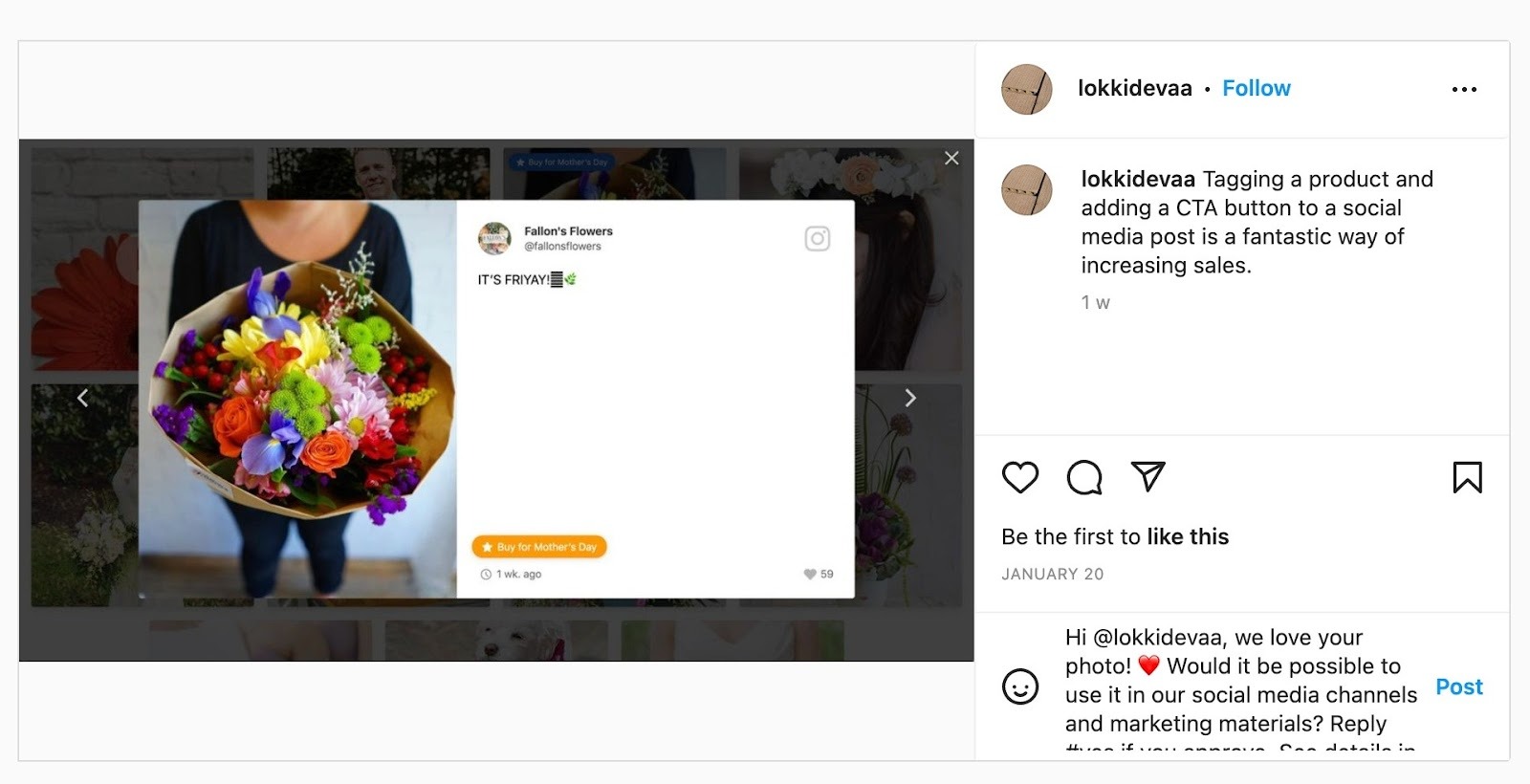
Open the social media post and leave a comment. Double-check that you are commenting with your company and not your personal profile.
-
Now, click the 'I’ve done it' button, and Flockler starts listening to the post comments. You can find the post on the 'Pending approval' tab.
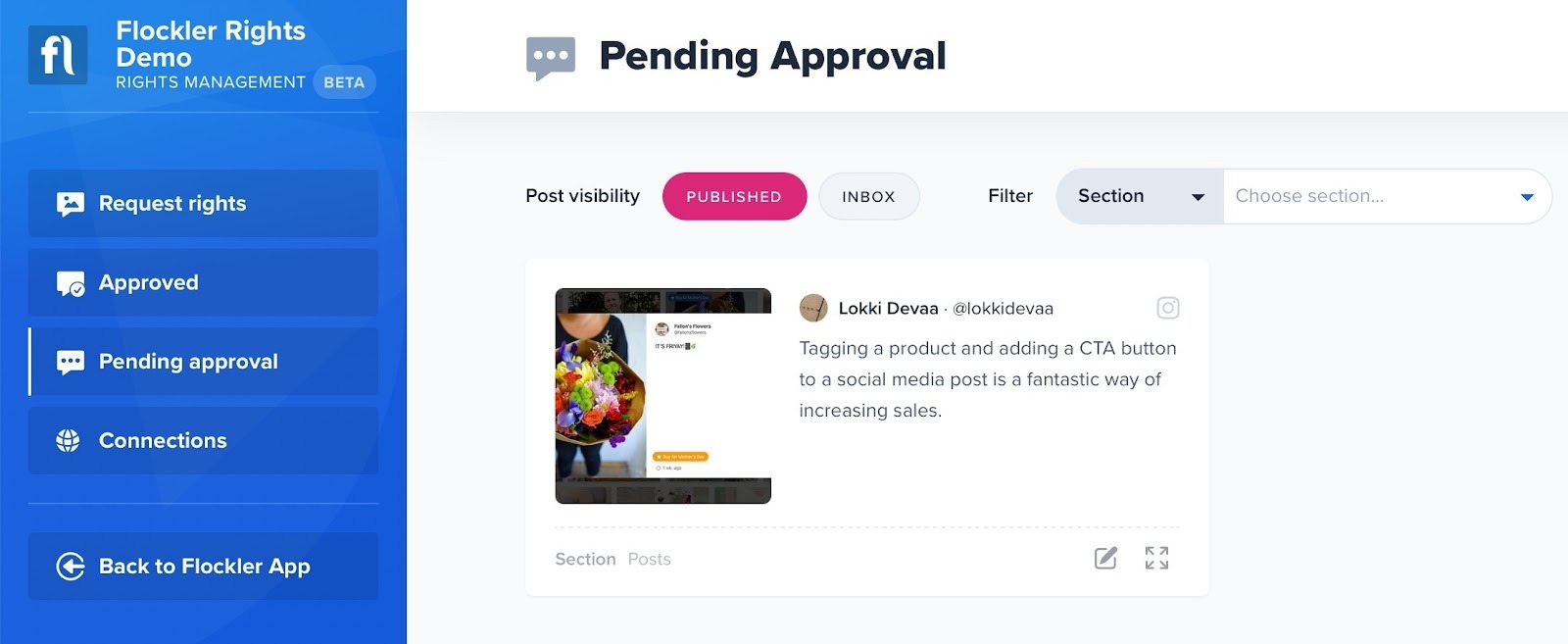
-
When the user replies and if they mention your chosen hashtag, the post moves to the 'Approved' tab, and the post has a green icon.
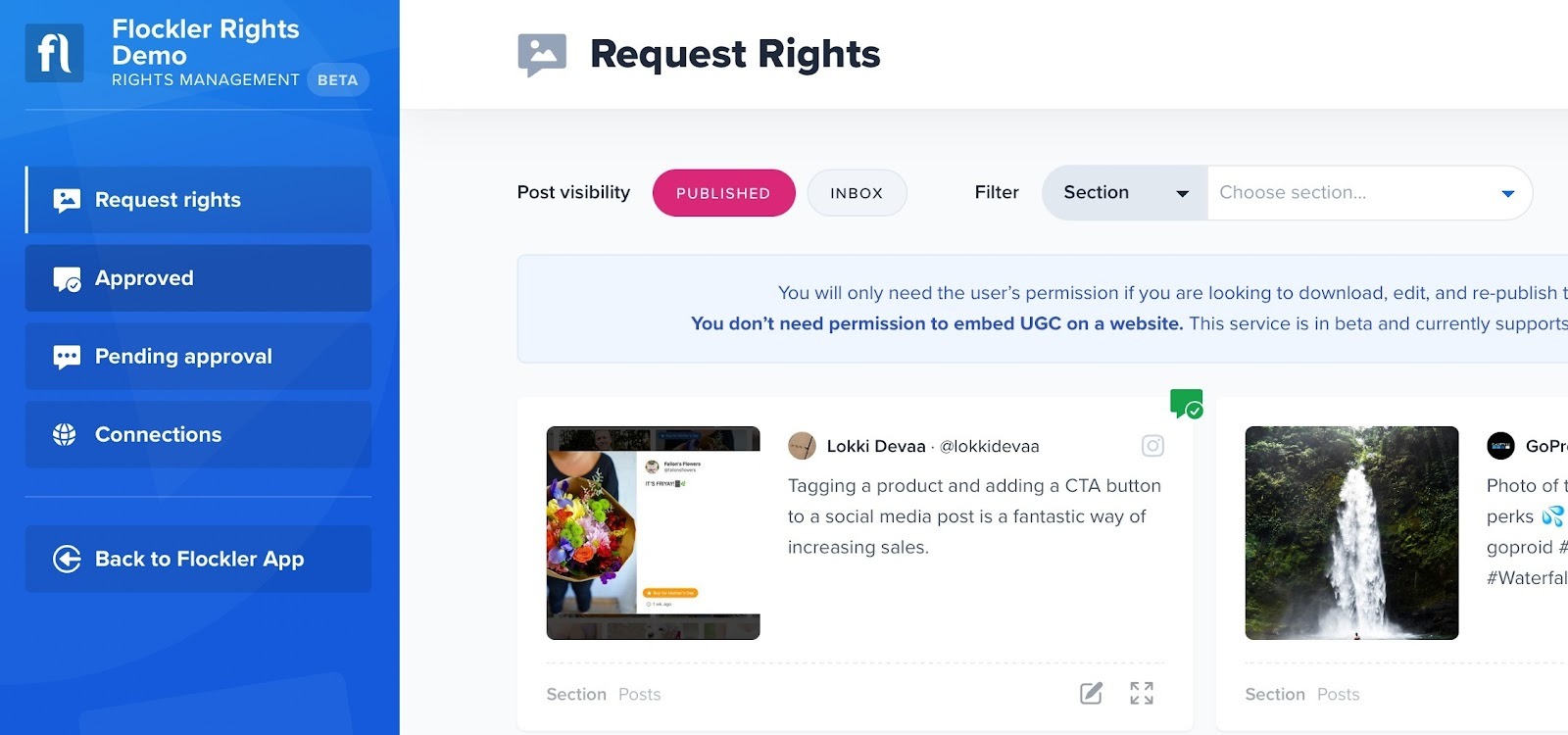
-
If you click to open the post, you can find a copy of the comment left by the user and a button to download the media for later use.
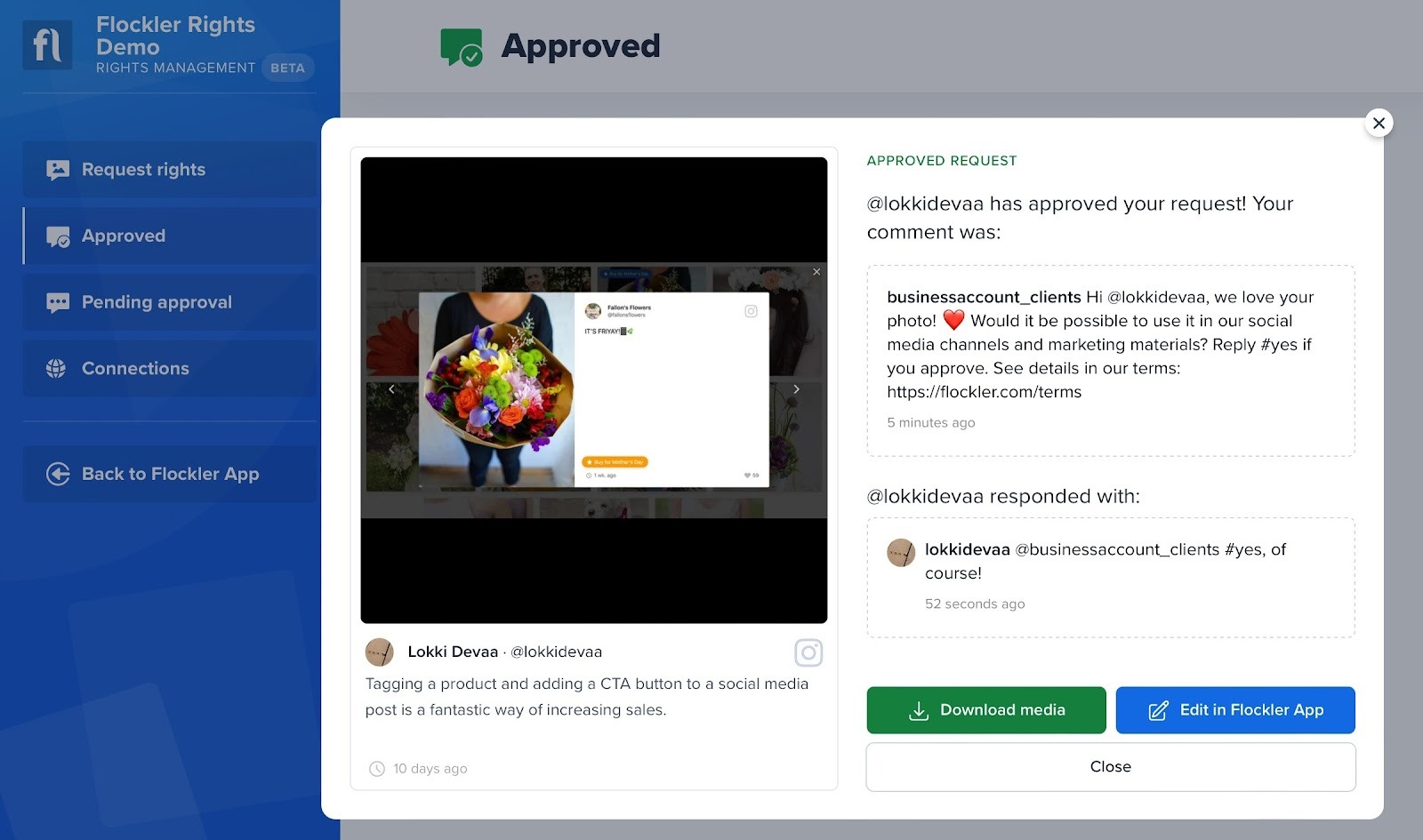
2. Request rights via the Direct Upload form
Sometimes, you might need a high-quality image file, and that’s when Flockler’s Submission Forms feature comes in handy.
Submission forms feature is available only on Pro and Premium plans. Check more on Submission Forms here.
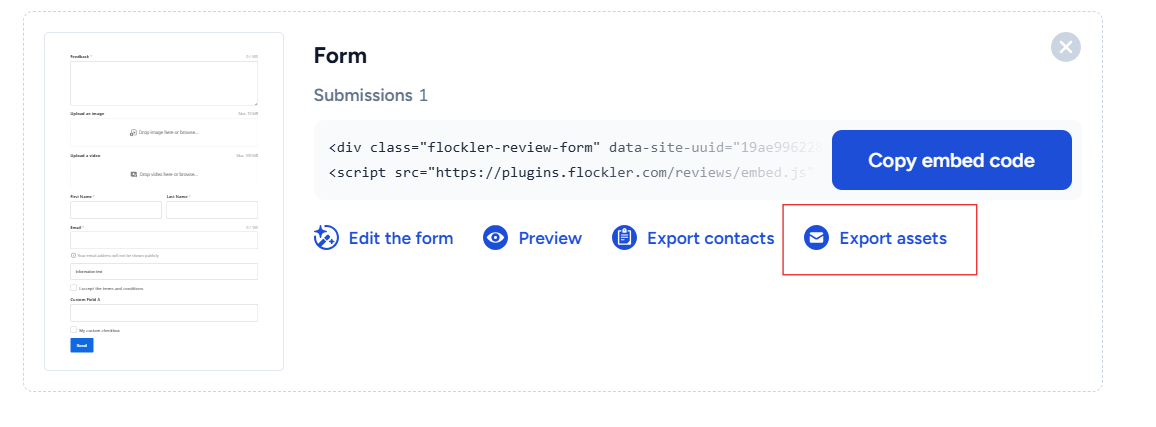
To gather content with a direct upload form, follow this step‑by‑step guide on how to create a submission form.
- Go to the 'Submission form' tab
-
Create an upload form. You can customize the fields and look & feel.
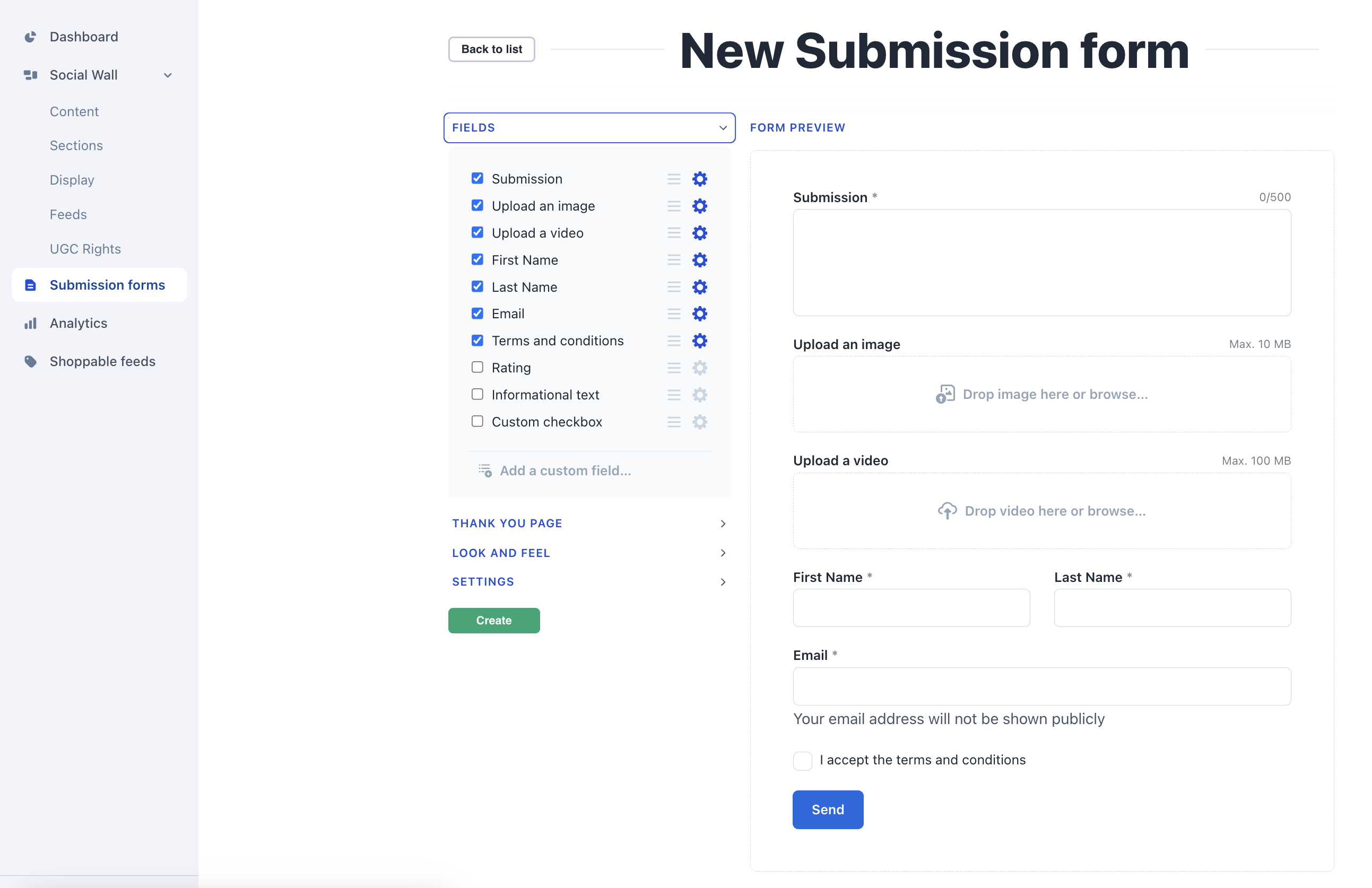
- Embed the form on a page on your website.
- Share the form with your customer via social media or email. After you’ve received the content, you can embed it on your website and download the image for re-publishing.
🙌 Need a Hand?
Our support team is here for you every step of the way.
💬 You can reach us via Messenger in the bottom‑right corner