
How to add a QR code to your social wall or display
Flockler can generate a QR code and show it right on your layout, so the people in front of your screen can scan it and go straight to your Submission Form (check more on Submission forms here) or any page you choose. There’s no need for an external QR generator, and no embedding required. It’s ideal for events and campaigns, or anywhere you want your audience to contribute or take the next step.
Add a QR code to your display
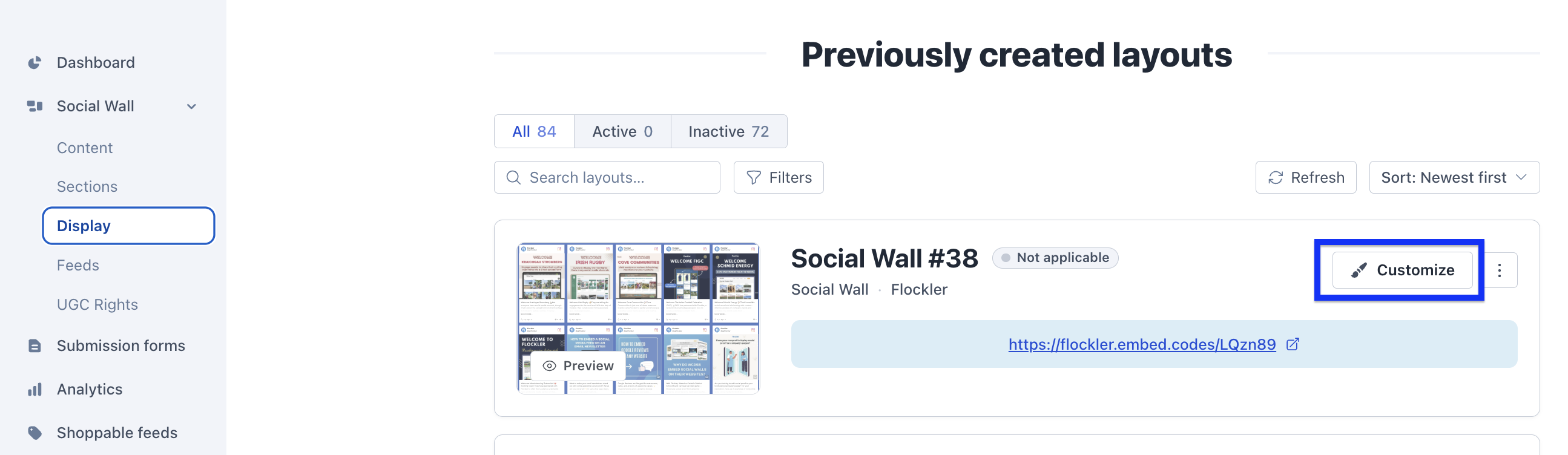
- Log in to Flockler and open the Display tab.
-
Choose the layout you want to use (or create a new one) and click Customize:
-
Scroll to the QR Code section:

- Turn on Show QR code. The preview updates straight away, so you can see exactly how it’ll look as you set it up.

Choose where the QR code points
Under Destination, pick one of:
- Submission Form — choose one of your Submission Forms from the list. The QR code links straight to that form’s own page, so there’s nothing to embed: people who scan land directly on the form, ready to submit (Submission forms available only for Pro and Premium plans)
- Any URL — enter any web address you’d like the code to open, such as your event page or a campaign landing page. Addresses need to start with
https://.

Style your QR code
Make the code fit your wall:
- Text — add a short call to action, like “Scan to share your photos” (optional).
- Background colour and QR code & text colour — set both to match your design.
- Size — choose Small, Medium, or Large.
- Opacity — adjust how boldly the code sits over your content.
- Position — pick which corner it appears in.
💡 Keep a strong contrast between your two colours so the code stays easy to scan. Flockler will warn you if the contrast looks too low to read reliably.

Click Save changes when you’re happy with the preview.
How it appears on your display
Once saved, your QR code shows as a fixed overlay in the corner you chose. A few things worth knowing:
- It stays visible. The code is pinned to its corner and doesn’t move as posts scroll, new content arrives, or slides rotate, so it’s always there when your audience is most engaged.
- It works everywhere your display does. Wall, Grid, Carousel, and Slideshow layouts, on your website and on digital screens.
- It updates automatically. If you change the destination or styling later, your live displays pick up the change, you don’t need to re-copy your embed code.
- On a computer, it’s clickable. Desktop visitors, who can’t scan their own screen, can click the code to open the destination in a new tab.
Download the QR code for print
Need the code on a banner, badge, poster, or other printed signage? Click Download QR code to get a high-resolution image you can use anywhere. The download is available whenever Show QR code is on.

Pausing or removing the QR code
To take the code down, switch Show QR code off. Your settings are kept, so you can turn it back on anytime without setting it up again.
🙌 Need help?
Chat with us using the widget in the bottom-right corner, or email team@flockler.com.