
Setting up two-factor authentication (2FA)
Two-factor authentication (2FA) adds an extra layer of security to your Flockler account. When it's enabled, signing in requires both your password and a one-time code from an authenticator app on your phone. That way, even if someone learns your password, they can't get into your account without your device.
2FA is optional and turned off by default. Each user can enable it for their own account by following the steps below.
📱 Before you start
You'll need an authenticator app installed on your phone, such as Google Authenticator, Microsoft Authenticator, Authy, 1Password, etc.
🔐 How to enable 2FA
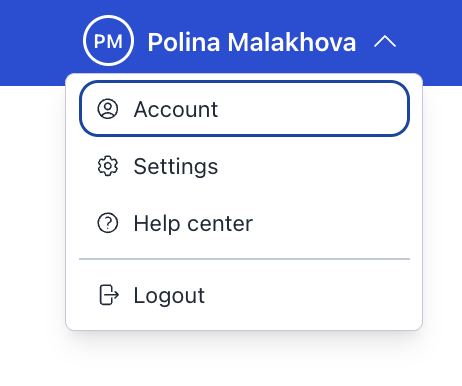
- Click your username in the top-right corner.
-
Select Account.
-
Scroll down to the two-factor authentication section. You'll see a QR code and a setup key.
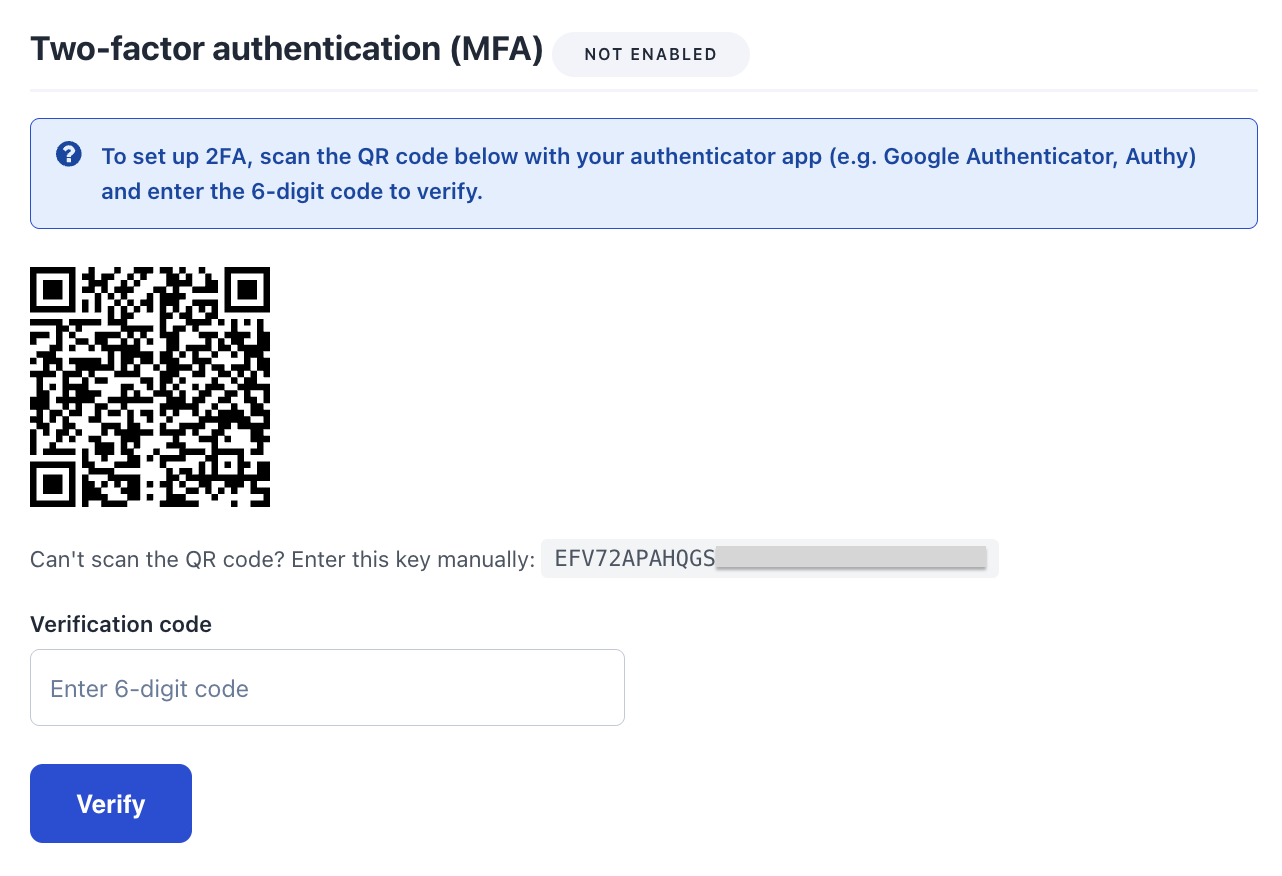
- Open your authenticator app and scan the QR code (or enter the setup key manually).
-
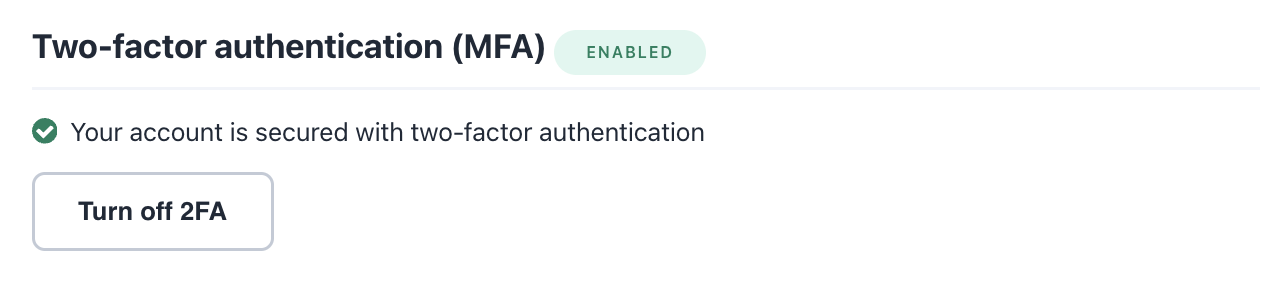
Enter the 6-digit code shown in your app to confirm. 2FA is now enabled.
🔑 Logging in with 2FA
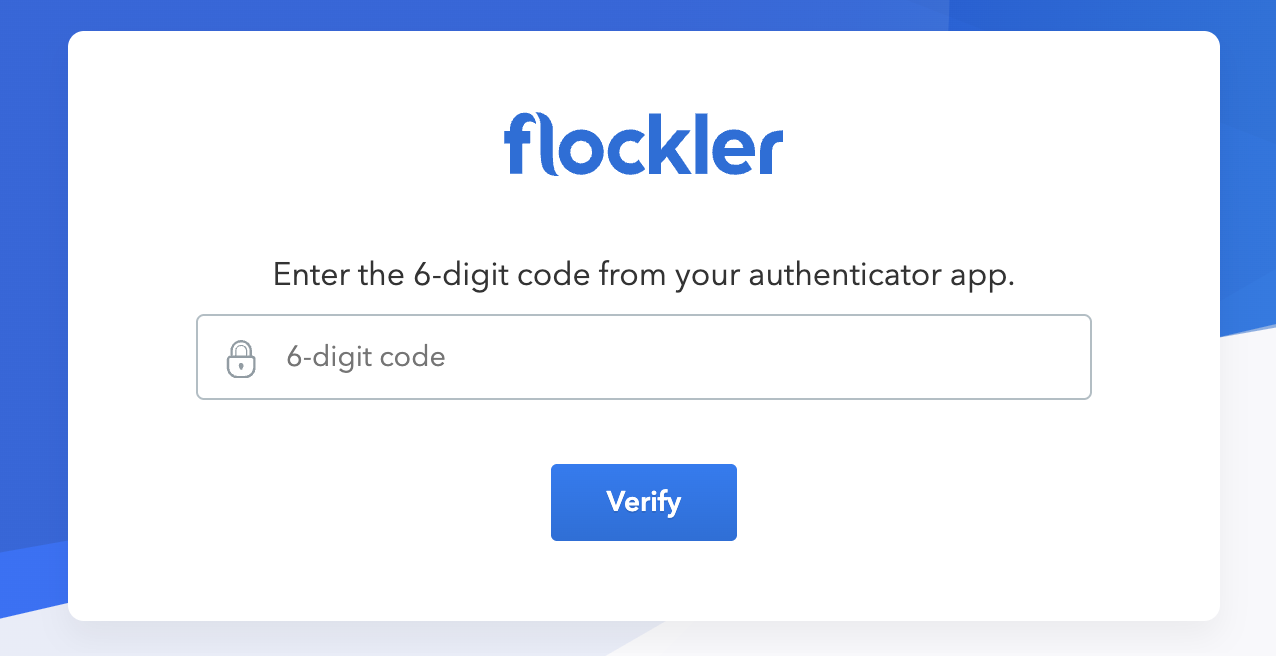
The next time you sign in, Flockler will ask for a one-time password after your email and password. Open your authenticator app, find your Flockler entry, and enter the current 6-digit code to finish logging in.
🔓 Turning off 2FA
You can disable 2FA from the same section of your Account page:
-
Click Turn off 2FA.
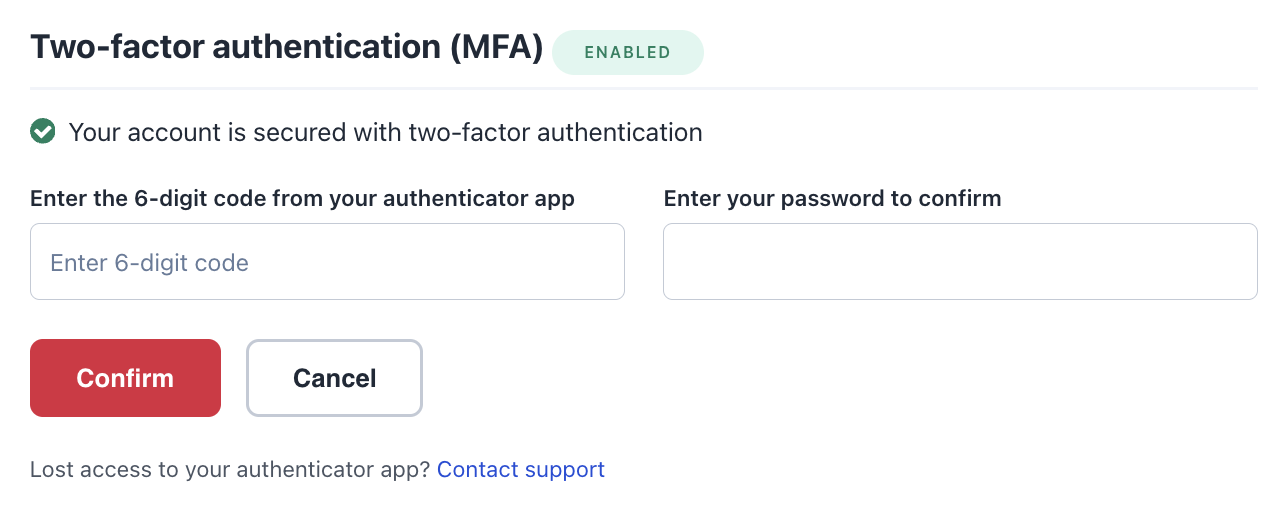
- Enter the current 6-digit code from your authenticator app.
- Enter your password to confirm.
-
Click Confirm. 2FA is now turned off for your account.
🆘 Lost access to your authenticator app?
If you no longer have access to the device or app that generates your codes, you won't be able to enter a one-time password to log in or turn off 2FA. In that case, use the Contact support link on the two-factor authentication screen and our team will help you regain access.