
How do I create a LinkedIn feed?

With the LinkedIn source, you can automatically pull posts from LinkedIn Pages you manage, or pull public posts that mention your LinkedIn Page. LinkedIn's terms don't allow automated feeds from other users' personal profiles or hashtag mentions, so Flockler can only fetch authentic content tied to Pages where you have admin rights. You can still manually add public posts from others if needed.
How to automatically pull my company's LinkedIn Page posts
After logging in, go to the 'Feeds' tab and click the 'Create a new Automated Feed' button.
Next, select LinkedIn and connect the LinkedIn account that has Super admin access to the pages you want to pull posts from. We don’t show any content from your personal account, but Flockler needs access to the Pages you manage.

Login happens on LinkedIn’s side, and Flockler never stores your email or password

If your account has access to multiple Pages, select the one you'd like to use.
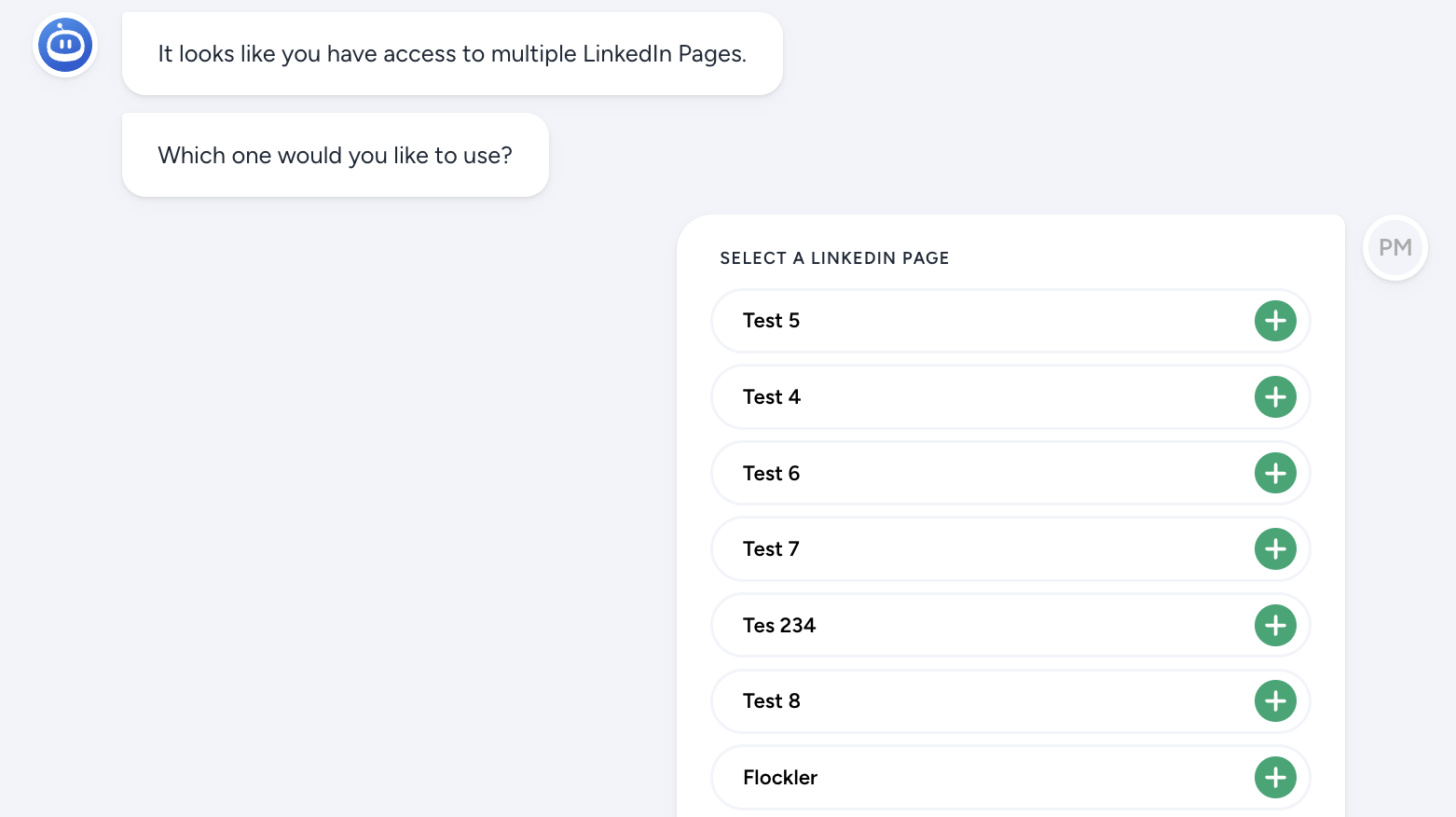
Then choose what you'd like to collect from LinkedIn:
- Company posts by Page admins — automatically pulls posts published by your LinkedIn Page
- Public posts on LinkedIn mentioning your Company Page — automatically pulls public posts from other LinkedIn pages and users that mention your Page
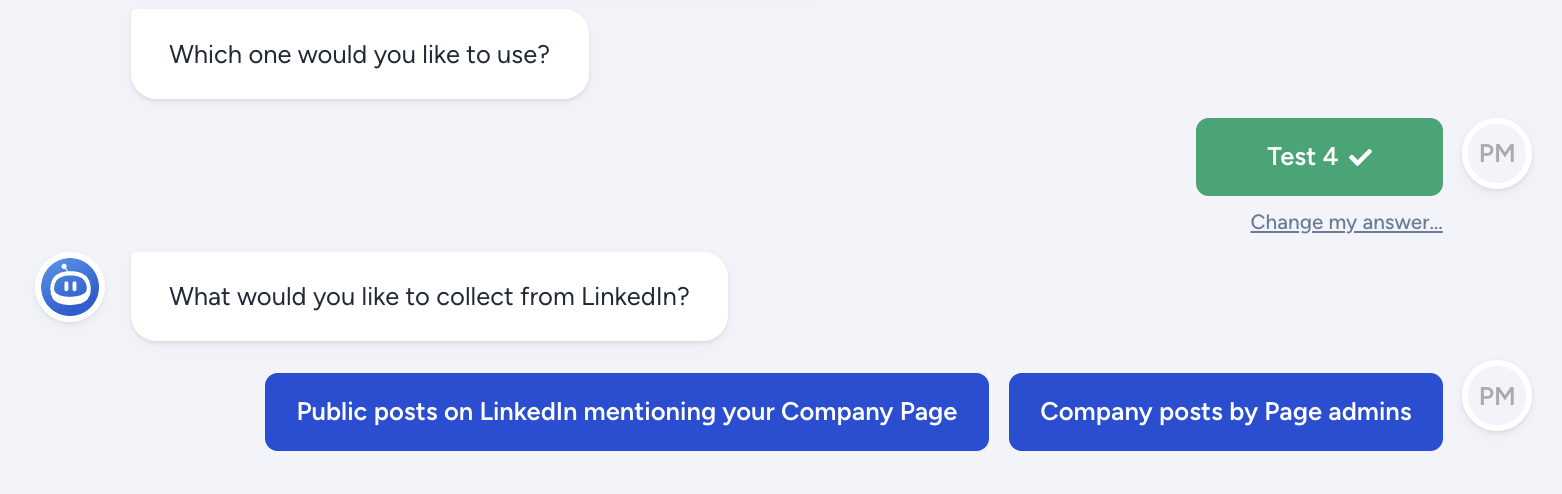
If you choose Company posts by Page admins, you'll then be prompted to choose your target filters, such as language or location.

Or you can pull all posts.

If you choose Public posts mentioning your Company Page — Flockler will pull all public mentions by other LinkedIn Pages or Personal profiles mentioning your LinkedIn Page.
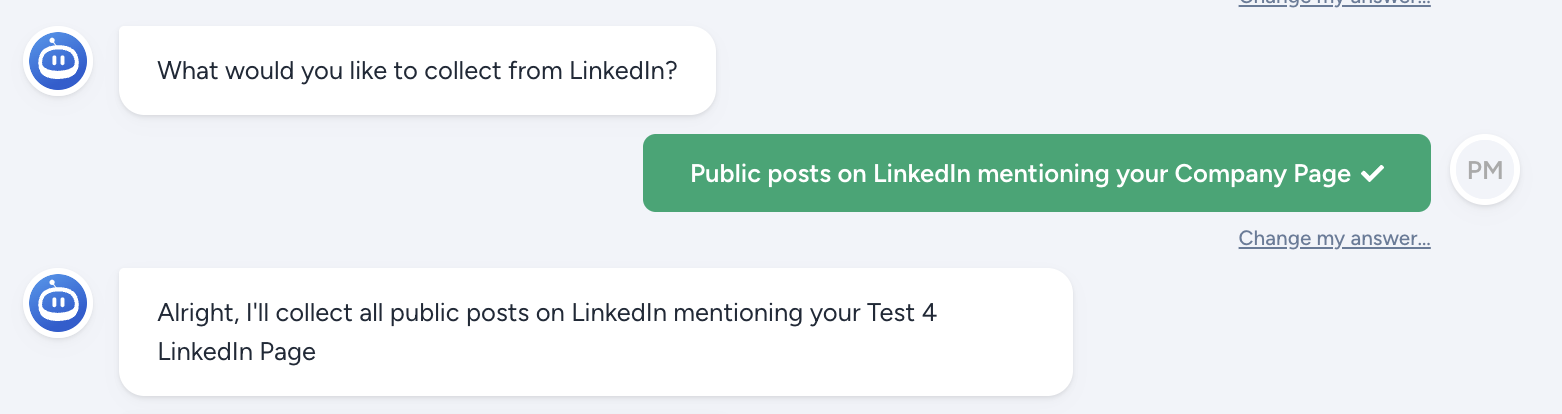
Once you’re done with that part, save the content to an existing section or create a new one. You can learn more about what a Section is here.

Finally, choose how you want to moderate posts:
- Use Guard AI
- Review and approve posts manually
- Or display all posts automatically

Open the Content tab to manage your posts. Here you can approve content if your feed is moderated manually, add posts yourself, or make edits when needed.

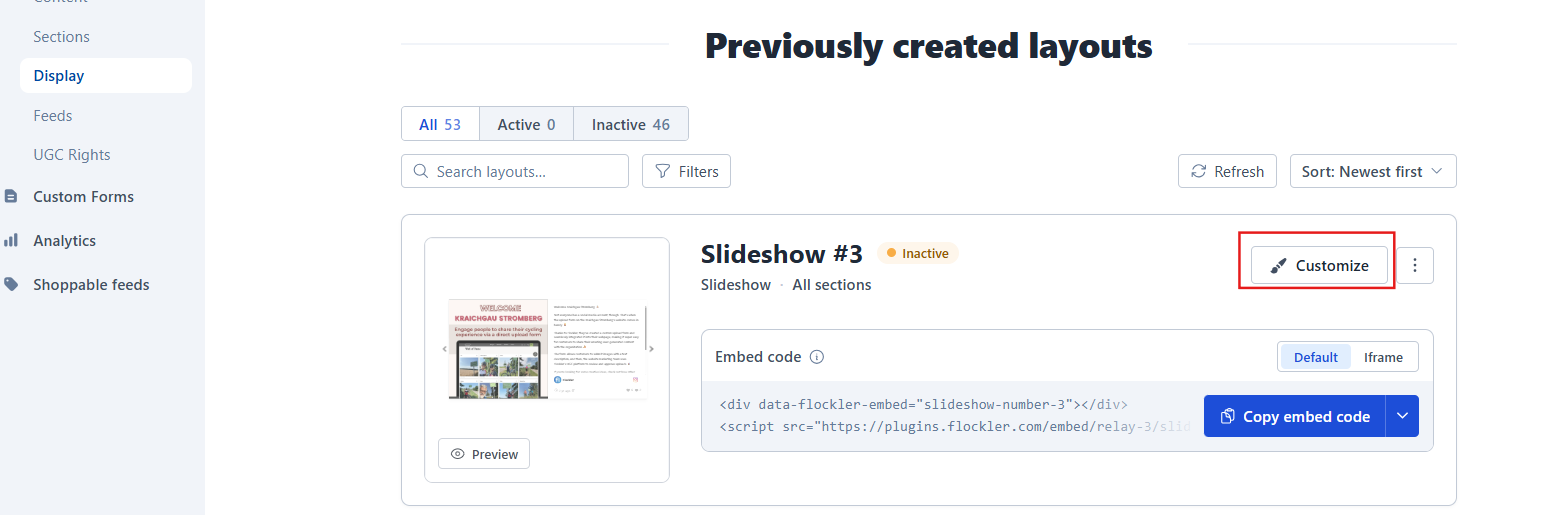
When you're ready to publish, go to Display and choose the layout you want to show on your website or digital screen

All layouts are fully customizable — just click 'Customize' to fine‑tune the look and behavior.
🙌 Need a Hand?
Our support team is here for you every step of the way.
💬 You can reach us via Messenger in the bottom‑right corner