
How to use Flockler in events

Live social walls energize any event — from conferences and trade shows to weddings and fundraisers. Showing attendee posts in real time boosts engagement and extends your reach beyond the venue.
With Flockler, you can easily collect posts from social platforms or directly from attendees, display them on screens or your event site, and keep everything on‑brand and safe with built‑in moderation.
How to collect content at your event
You have two ways to gather content - use one or both, depending on your audience.
Option 1: Social Media Hashtags & Mentions
Perfect for conferences, trade shows, and public events where attendees are already on social media.
Set it up:
Go to Feeds in Flockler and click [Add new automated feed]. Learn more about Feed here

Choose your source: Instagram, Facebook, X, Youtube or Bluesky

Enter your event hashtag or account mentions

Enable moderation so you approve posts before they display

Save, and you're collecting automatically
Option 2: Direct Photo/Video Submissions
Perfect for events where not everyone uses social media, or when you want content that stays within your organization.
Set it up:
- Create a Submission Form in Flockler where visitors can upload photos and videos. Learn more about Submission Forms here (available on Pro and Premium plans).
- Publish your submission form on a page (your website, event microsite, or a simple hosted page), or use our 'Preview' link. Your form is mobile-friendly, so attendees can complete it comfortably on their phones.


Show a QR code so attendees can reach your form
Flockler can now generate a QR code for you and show it right on your social wall or slideshow — no external tools needed.
-
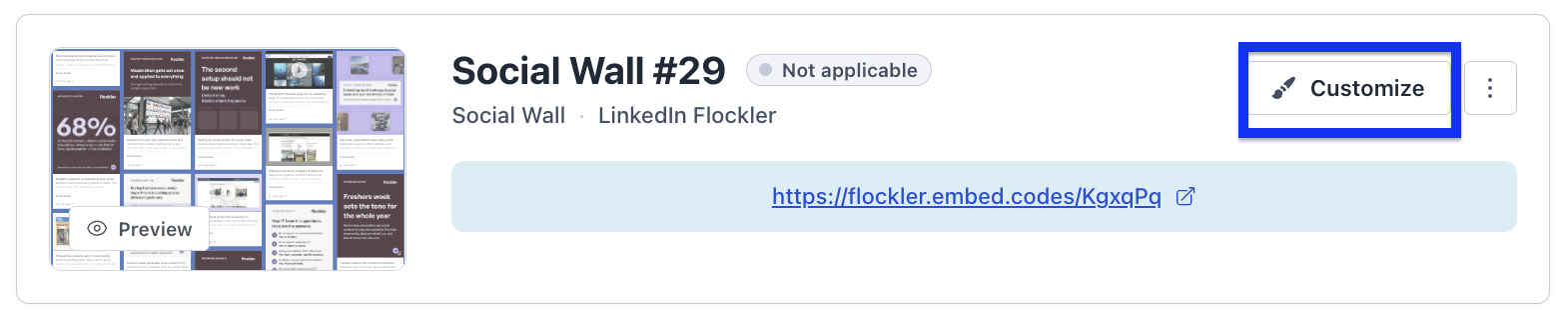
Open your Display tab and click on Customize button on the layout you want to add a QR code to:
- Scroll to the QR Code section
-
Turn on Show QR code and choose where it points: one of your Submission Forms (Flockler links straight to the form’s page — no embedding required) or any URL you enter:
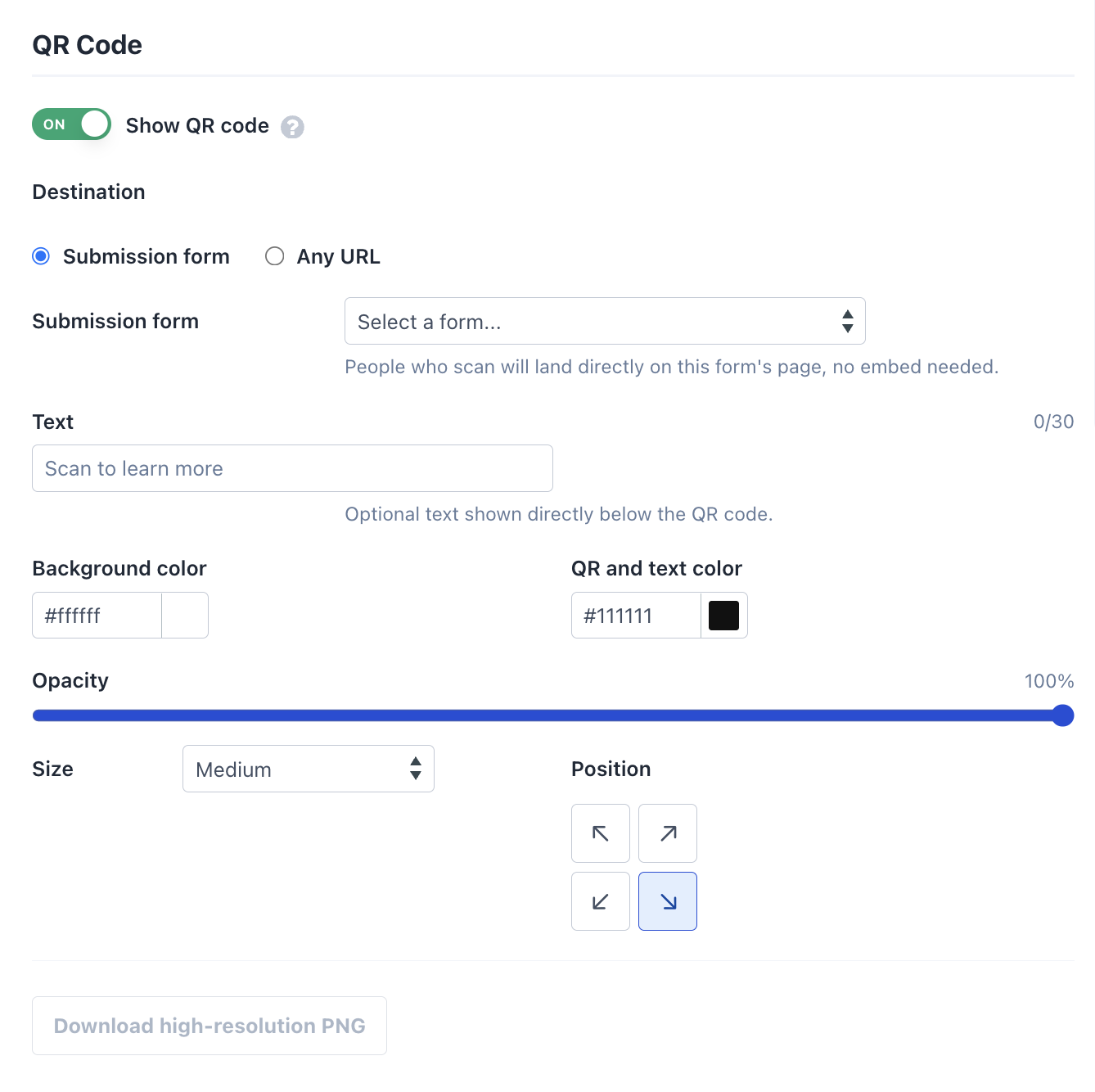
- Add a short call-to-action (e.g. “Scan to share your photos”), and adjust the colours, size, opacity, and on-screen position to suit your wall.
- Save. The QR code appears as a fixed overlay on your display — it stays put in its corner even as posts scroll or new content arrives, so it’s always visible when engagement is highest. It works across Wall, Grid, Carousel, and Slideshow layouts, and on digital screens.
💡 Need it for print? Use Download QR code to get a high-resolution image for banners, badges, or signage.
Attendees scan, upload, and submit instantly — no social login required.
💡 Tip: keep the wall moving during live events

Attendees scan, upload, and submit instantly — no social login required.
How to Display Content on Screens
Flockler offers two layouts designed specifically for event screens:
Social Wall
Layout showing multiple posts at once. Great for high-volume events where you want to showcase the breadth of participation. Updates automatically every 5 minutes.
If you are expecting a massive volume of posts within 5 minutes and need faster updates, please get in touch with us via live chat at the bottom right corner of the page or send us an email to team@flockler.com

Slideshow
One post at a time, rotating through content. Perfect for keynotes, award ceremonies, or anywhere you want to focus on individual posts. Updates after each rotation.

Setting Up Your Event Display
1. Create your layout
Go to Display → Create New Layout → Choose Social Wall or Slideshow → Display on Digital Screen
2. Select your content sources
When creating a feed or a submission form, you had the option to add content to a section or create a new one. A section works like a folder where you store, organize, and adjust content.
Please note that your display pulls content from the section—not directly from the feed or form configuration. Learn more about Sections here
Choose which sections to display - your event hashtag, form submissions, or both. You can mix multiple sources in one display.

3. Customize the look
Click 'Customize' to the layout you want to adjust:

- Add your event logo and colours, and upload a background image or branded template

- Adjust how many posts show at once (Wall only)
- Set rotation speed (Slideshow only)
- Use custom CSS for advanced styling

4. Launch on your screen
Flockler gives you a unique display link. Open it on any device connected to your digital screen - laptop, media player, or presentation system. No manual refreshing needed; it updates automatically.

Ready to Set Up Your Event Wall?
New to Flockler?
→ Start your free 14-day trial (no credit card required)
→ Book a demo to see event displays in action
🙌 Need help?
Chat with us using the widget below in the right corner, or send us an email team@flockler.com